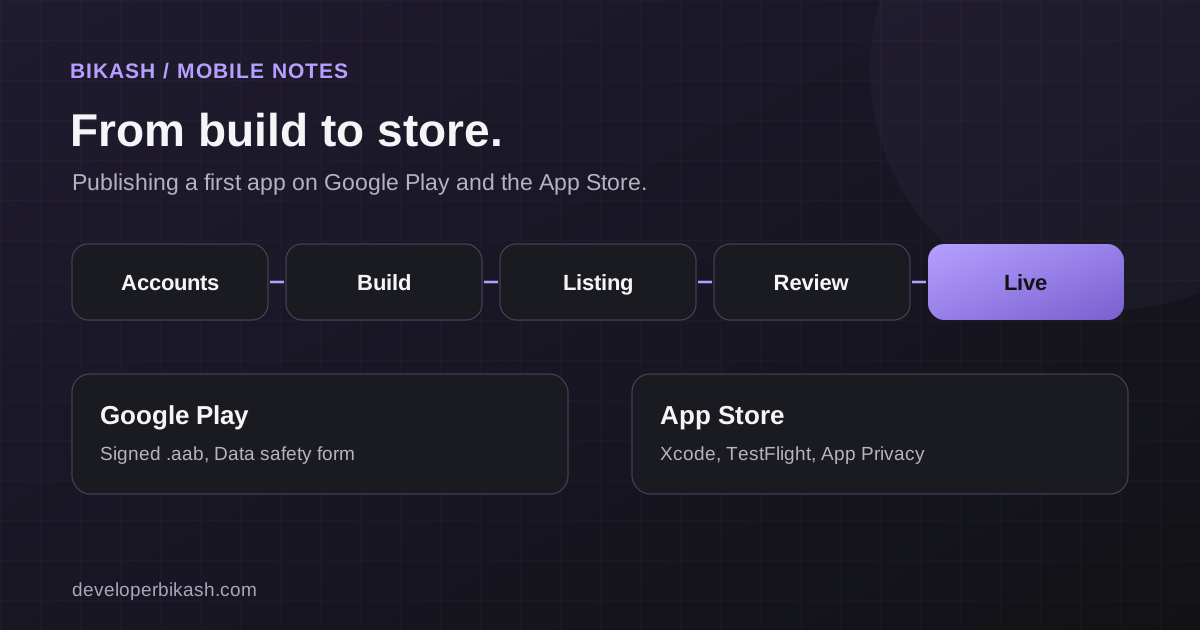
To publish an app you need a developer account on each store, a signed release build, a store listing with screenshots and descriptions, honest answers on privacy, and an app that passes review. For a first release, plan one to two weeks for all of this, after the app itself is finished. The slowest parts are usually account verification and fixing whatever the review team finds.
I have taken apps through both stores. My InstaFit is live on iOS and Android, built with Capacitor. News Briefing, built with Flutter, is on Google Play, and its iOS version was going through App Store review when I wrote this. This is the process I follow, with the points that catch people out.
What you need before you start
| Item | Google Play | Apple App Store |
|---|---|---|
| Developer account | Google Play Console, one-time registration fee | Apple Developer Program, annual fee |
| Build format | A signed Android App Bundle (.aab) | An archive built in Xcode, uploaded to App Store Connect |
| Icon | 512 x 512 pixels | 1024 x 1024 pixels |
| Screenshots | Phone screenshots, plus a feature graphic of 1024 x 500 | Screenshots for the required device sizes |
| Privacy | Privacy policy URL and the Data safety form | Privacy policy URL and App Privacy details |
| Testing channel | Internal and closed testing tracks | TestFlight |
Fees and requirements change from time to time, so confirm the current ones in each store's documentation before you plan your budget or timeline.
Step 1: create your developer accounts
Do this first, because it can take days. Apple lets you enroll as an individual or as an organization. An organization account normally needs a legal business name and a D-U-N-S number, and verification can take longer. Google verifies your identity too, and for newer personal accounts it currently asks you to run a closed test with a minimum number of testers for a set period before you can apply for production access. Check the exact numbers in Play Console, because that waiting period can add weeks if you find out late.
Publish under an account that belongs to you or your business, not your developer's. You want to own the listing, the reviews and the update keys.
Step 2: prepare the app for release
- Set the identifiers and version. The bundle ID or package name is permanent once published, so choose it carefully. Set a version number and a build number you can increase with every upload.
- Switch to production settings. Use live API keys and the live backend, remove test accounts and debug screens, and turn off verbose logging.
- Check permissions. Only ask for what the app needs, and write a clear reason for each. Apple shows your wording to users and reviewers.
- Add account deletion if users can sign up. Both stores expect apps that create accounts to let people delete them from inside the app.
- Add crash reporting. After release you want to know what breaks on devices you do not own.
- Publish a privacy policy. It must be a public web page, and it must describe what your app really collects.
Step 3: build and upload
For Android, you create a signing key, build a release App Bundle and upload it to Play Console. Keep that signing key and its password somewhere safe. Losing it makes future updates painful. Google can manage the final signing for you if you enable Play App Signing.
For iOS, you build and archive the app in Xcode, which requires a Mac, then upload it to App Store Connect. Builds appear there after processing, and from there you can send them to testers through TestFlight or attach one to a version for review.
Step 4: write the store listing
The listing is what people see before they install, so give it real attention.
- Title and short description. Say what the app does in plain words. Include the main search phrase people would use, but do not stuff keywords, since reviewers reject misleading metadata.
- Full description. Lead with the benefit, then list the main features. Keep it accurate.
- Screenshots. Show real screens in the order a new user would meet them. Short captions help. Do not show features the app does not have.
- Category and age rating. Answer the content questionnaires honestly. A wrong rating can get the app removed later.
- Support contact. Add a working email address and a support or website link.
Step 5: complete the privacy and compliance forms
Google asks you to fill in a Data safety form. Apple asks for App Privacy details. Both want to know what data you collect, why, whether it is shared, and whether it is encrypted. Answer for the whole app including any analytics or advertising libraries, not only your own code. A mismatch between your answers and what the app actually does is a common reason for rejection.
If your app offers sign-in with a third-party account such as Google or Facebook, check Apple's current rules about offering an equivalent privacy-focused sign-in option. Declare ads, payments and any content that needs a special rating.
Step 6: test with real people on real devices
Use TestFlight for iOS and an internal or closed testing track for Android. Ask testers to install from the store link, sign up from scratch, and try the paths a new user takes. Test on a small older phone and on a large new one. Many bugs only show on real devices with real network conditions, and they are much cheaper to fix before review than after launch.
Step 7: submit for review and handle rejections
Submit when the listing, forms and build are all ready. Review often takes a day or two, but allow a buffer, since it can take longer, especially for a first submission or after a rejection. Common reasons for rejection are:
- The reviewer cannot sign in. Always supply a working demo account and any steps needed to reach the main features.
- Crashes or broken screens during review.
- Placeholder content, dead links or a privacy policy URL that does not load.
- Privacy answers that do not match the app's real behavior.
- A listing that claims things the app does not do.
- Missing account deletion, or permission requests with no clear purpose.
When you are rejected, read the message carefully, fix the specific issue, and reply in the resolution center with a short note of what changed. Rejections are normal, not a verdict on your app.
What my own releases taught me
Three habits save the most time. First, I give reviewers a ready-to-use demo login in the review notes, so nobody gets stuck at a sign-in screen. Second, I fill in the privacy forms from the actual code and libraries in the build, instead of from memory. Third, I treat store assets as part of the project. Screenshots, the icon and the descriptions take real effort and are easy to leave until the last day. If you want to see the apps themselves, My InstaFit and News Briefing are in my portfolio.
Frequently asked questions
How much does it cost to publish an app?
The store fees are small compared with building the app: a one-time registration fee for Google Play and an annual fee for the Apple Developer Program. Check the current amounts on each store's website. For the cost of building the app itself, see my guide to mobile app development cost.
How long does app review take?
Often a day or two for Apple and a similar window for Google, but it varies. Plan a buffer for the first submission, and do not schedule a launch announcement for the day you submit.
Can I publish with a personal account?
Yes, on both stores. Organization accounts show your company name and are better for a business, but they take longer to verify. Personal Google accounts currently have extra testing requirements, so check Play Console for the latest rules.
What should I do if my app is rejected?
Read the exact reason, fix that issue, test again and resubmit with a short explanation. If a rule is unclear, ask in the resolution center. Most first rejections come from missing demo accounts, privacy mismatches or small bugs.
If you want help getting an app from finished build to live on both stores, I can include the store release in the project scope. See my mobile app development service, try the MVP cost calculator, tell me about your project, or book a 30-minute call.